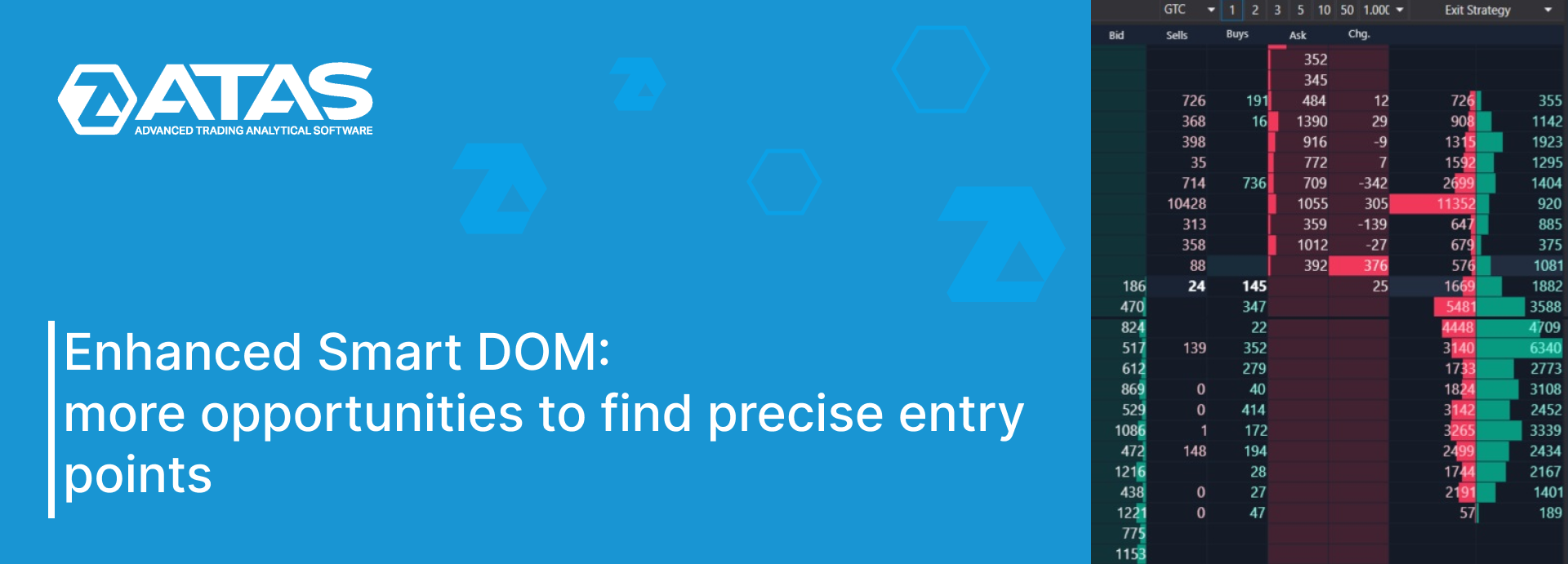
The Smart DOM (Depth of Market) is a module of the ATAS trading and analytical platform. It provides traders with a user-friendly interface to analyze detailed information about limit orders and make informed trading decisions.
In this article, we delve into the enhanced functionality of this module and explore how it can help traders capitalize on liquidity within the order book:
What Is Smart DOM? A Brief Introduction
Smart DOM is a standalone module within the ATAS trading and analytical platform.
Its primary purpose is to analyze liquidity in the order book, i.e., to analyze limit orders or Level II data provided by the exchange in real time. The module features a built-in profile that enables you to assess activity based on recently executed trades and other information.
Furthermore, Smart DOM serves another crucial purpose – trading.
A wide range of functions and flexibility of settings fully justify the name of this module – Smart.
As of spring 2024, following a series of updates, the Smart DOM module appears as depicted in the screenshot below.
Numbers indicate:
- The button to access the Smart DOM module. A live connection to the exchange is required for seamless functionality.
- The top panel. It offers options to select accounts, order volumes, and more.
- The bottom panel (Footer). Here you can find buttons for trading, centering, and other options which we will discuss further.

Between panels (2) and (3) lies the workspace, featuring familiar information displayed in columns:
- Orders / PnL. Information about your own trading activity.
- Today. Today’s profile.
- Price. A price scale.
- Change Bid. Changes in the bid column.
- Bid. Bids, or buy orders.
- Sells. Market sells.
- Buys. Market buys.
- Ask. Asks, or sell orders.
- Change Ask. Changes in the ask column.
- Liquidity Map. Short-term heat map. More details about the Heat Map can be found in this article.
- On the right – a column for quick one-click notes.
You can adjust the column positions by dragging and dropping them by their headers or by using the Up and Down buttons in the settings manager window (in the Selected Columns section). To adjust the column widths, simply scroll the mouse wheel while hovering over the column header.
To customize Smart DOM, open the settings manager window by clicking on the button indicated by the arrow in the previous screenshot.

The settings manager window contains three tabs:
- Columns. Here, you can add, remove, and customize columns, similar to the indicator manager. In the Available Columns field, select the desired column (two sections are available – General and Analytical columns); click Add to add it, then configure the selected column on the right.
- Common settings. Here you can adjust parameters for the module as a whole.
- Templates. Saved templates.
Additional information about the Smart DOM module is available in the Knowledge Base. You can also find descriptions for each column there.
Overview of Module Enhancements in 2024
Let’s explore the numerous enhancements that have been integrated into the module with the latest updates in early 2024.
Heat Map Has Been Added
You might have noticed the new liquidity map feature in the first screenshot of this article. It is a helpful and visually appealing tool that shows information about limit orders and recent trades in a dynamic way.
To add the liquidity map, go to the settings of the Smart DOM module, select the Liquidity Map column, click Add, and make any additional adjustments as needed.
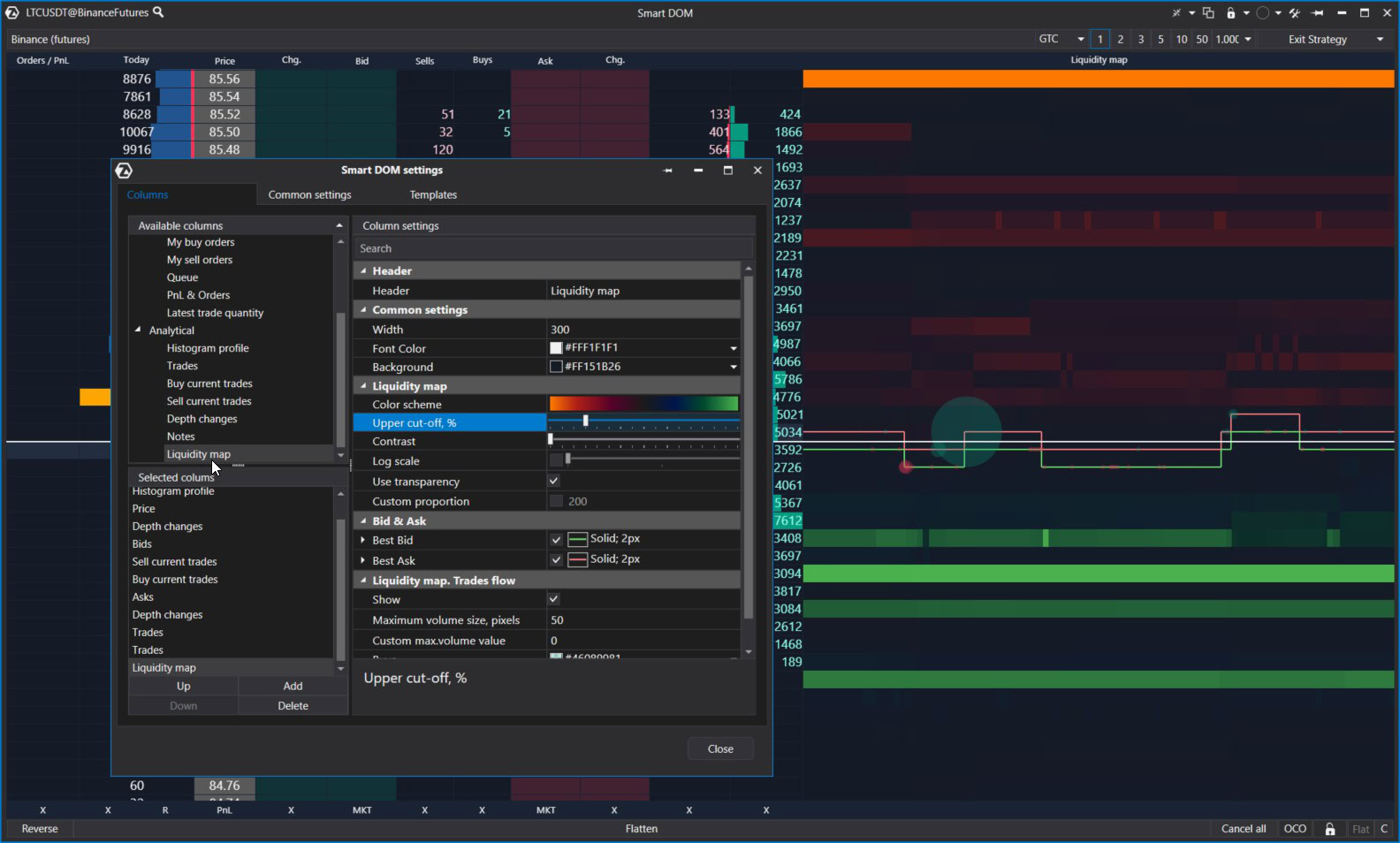
The liquidity map displays the most recent history of limit orders, spread, and trades (focusing on large trades). For more details on the flexible settings of the liquidity map (heat map), read the article: Heat Map in ATAS Functionality.
Global Font Settings
Previously, font settings were managed separately for each column. This was quite confusing but it offered great flexibility when adjusting fonts for each column.
Now, font management is available on the Common Settings tab:
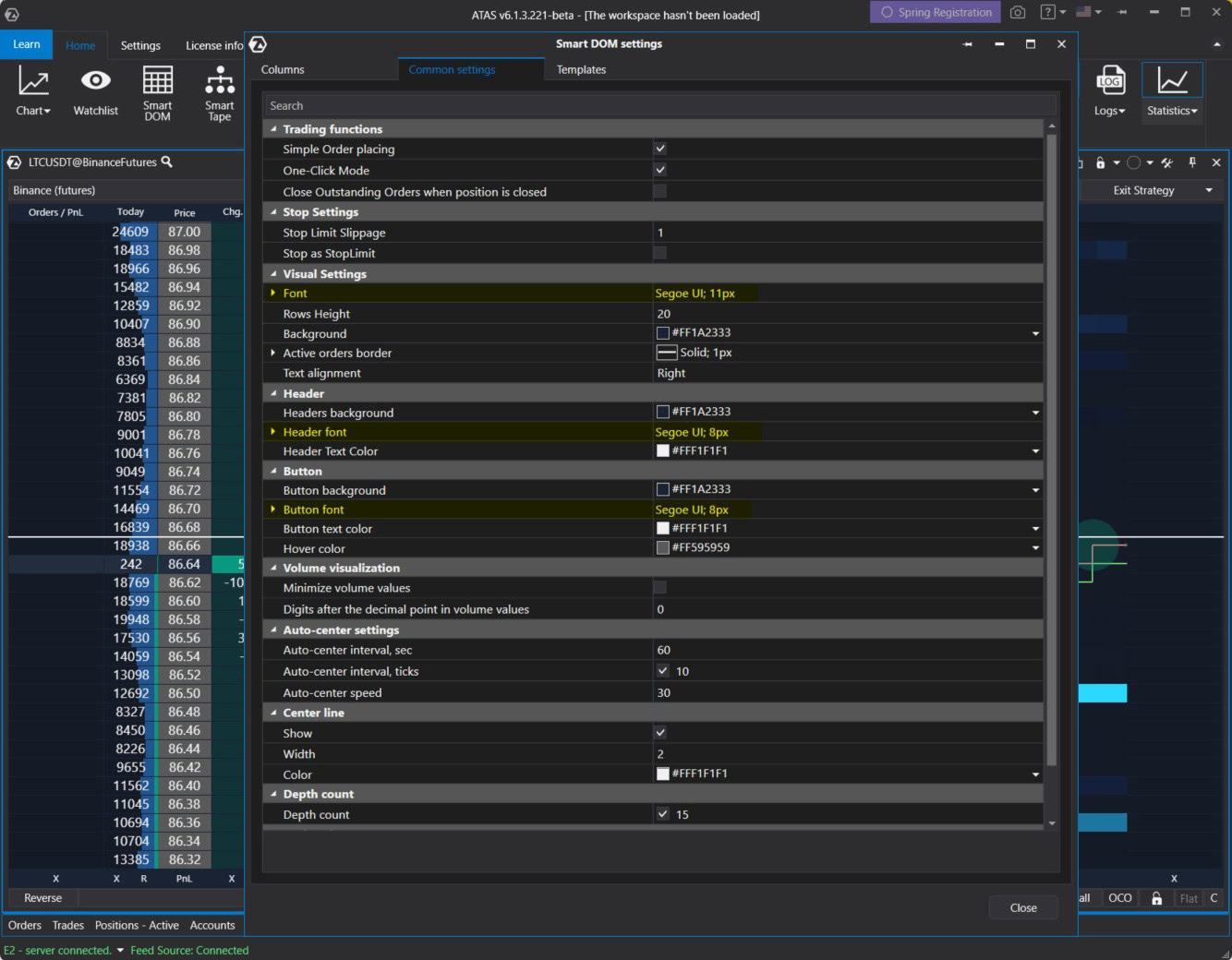
You can customize the common fonts (highlighted in yellow above):
- Visual Settings: customize fonts for the content within columns.
- Header: customize fonts for column headers.
- Button: customize fonts for buttons located at the bottom (Footer).
Additionally, all font sizes now benefit from smoothing technology, improving the visual clarity of text displayed on the computer screen.
A new approach has also been applied to color settings: on the Common Settings tab, there are now parameters allowing users to customize backgrounds and text colors for all buttons in the Header and Footer sections.
Vertical Data Alignment
A new feature has been added to the Common Settings tab enabling users to adjust the vertical alignment of column content (left, center, right).
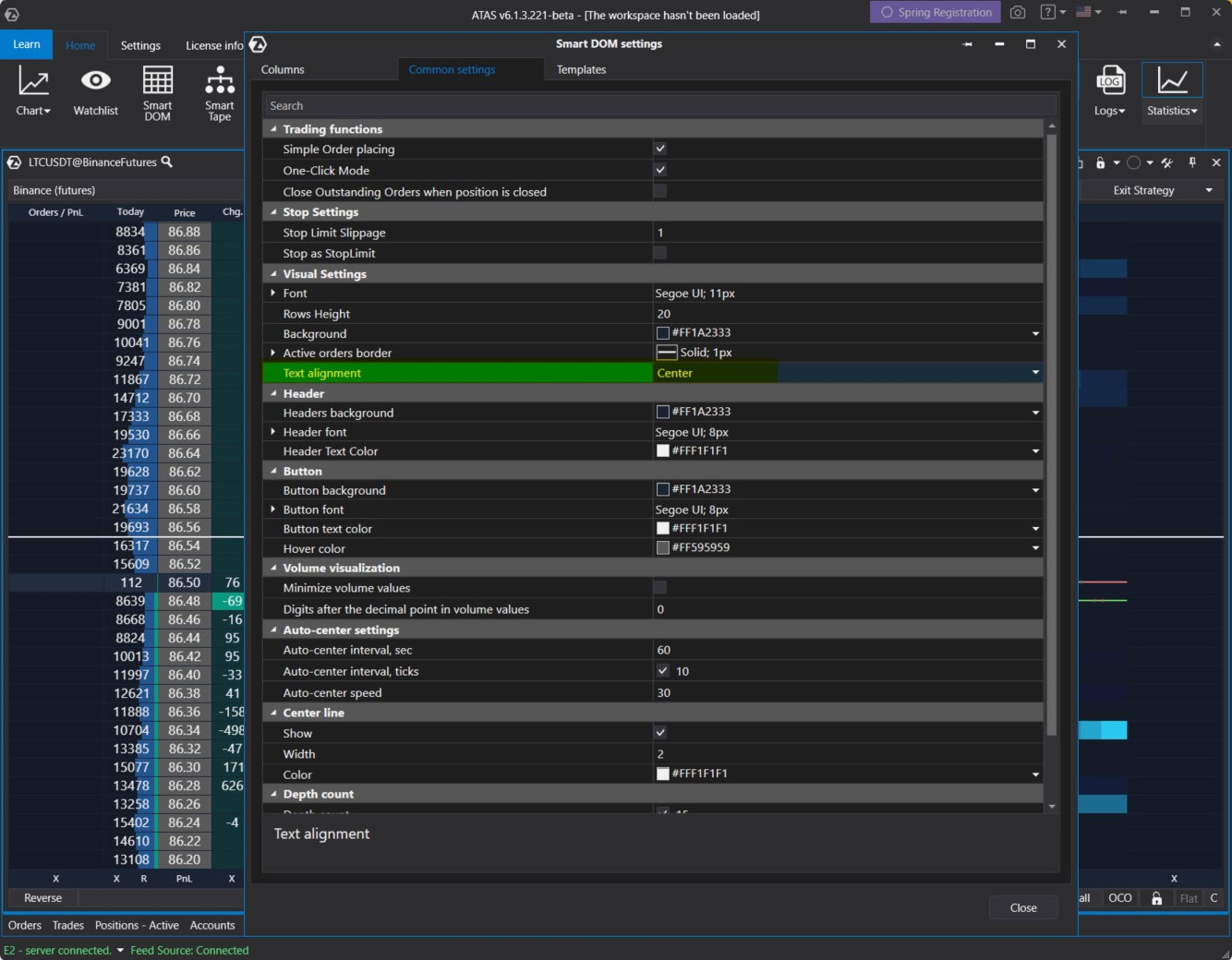
However, the Columns tab also includes an Alignment parameter, which takes priority. To remove this priority, select Default for the Alignment parameter in the column settings. Then, the content in the column will be aligned according to the settings on the Common tab.
Price Rounding
A new parameter, Price Digits, has been added to the Price column settings. This enables you to truncate the content in the column by specifying how many digits to display from the right side of the price.
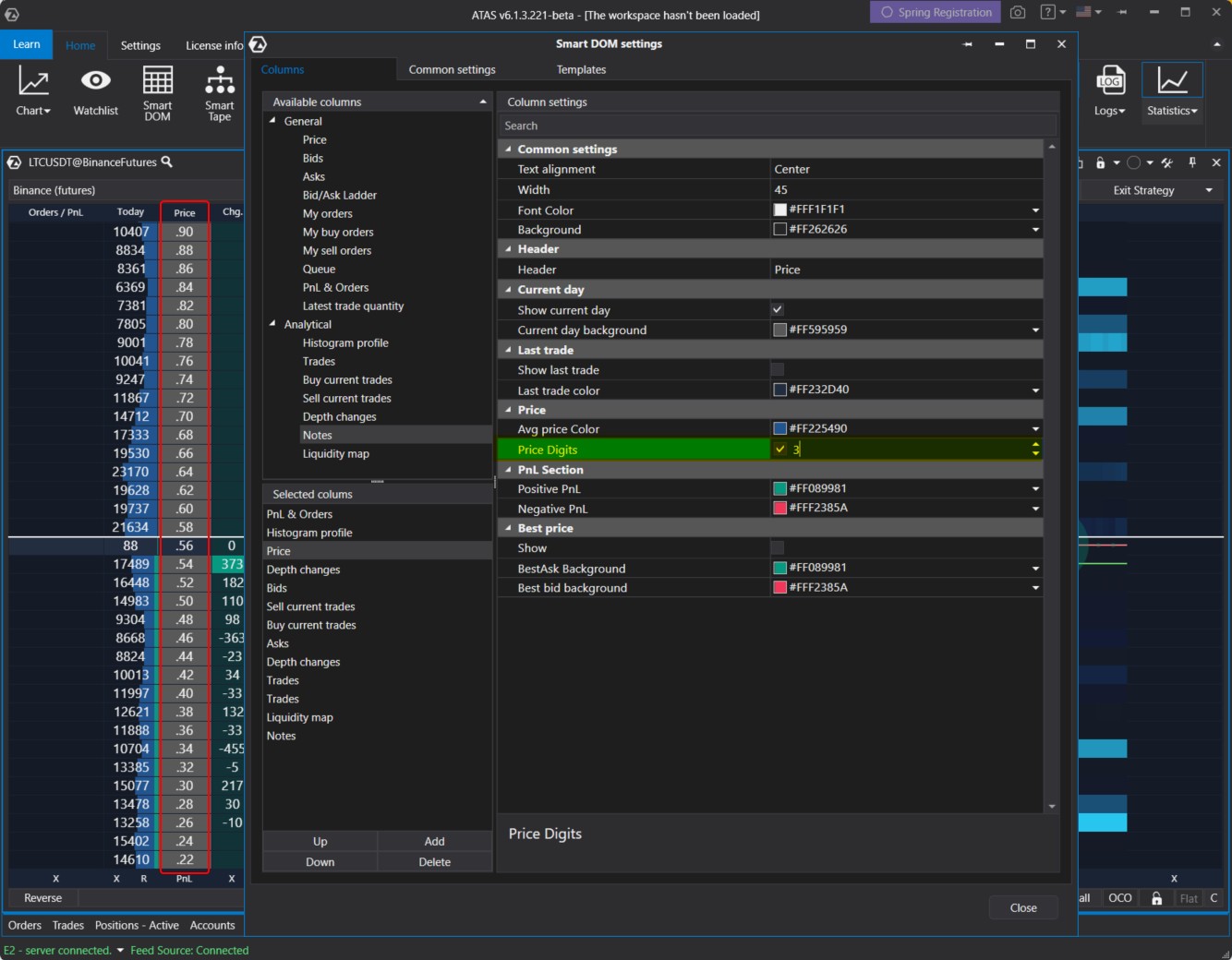
For example, if you set Price Digits = 3 for LTC/USDT, only the dot and cents will be shown in the Smart DOM. This is convenient for saving space and conciseness. There is a similar setting in the Smart Tape.
More Informative Orders / PnL Column
Previously, this column displayed information on open positions and potential profit or loss (PnL).
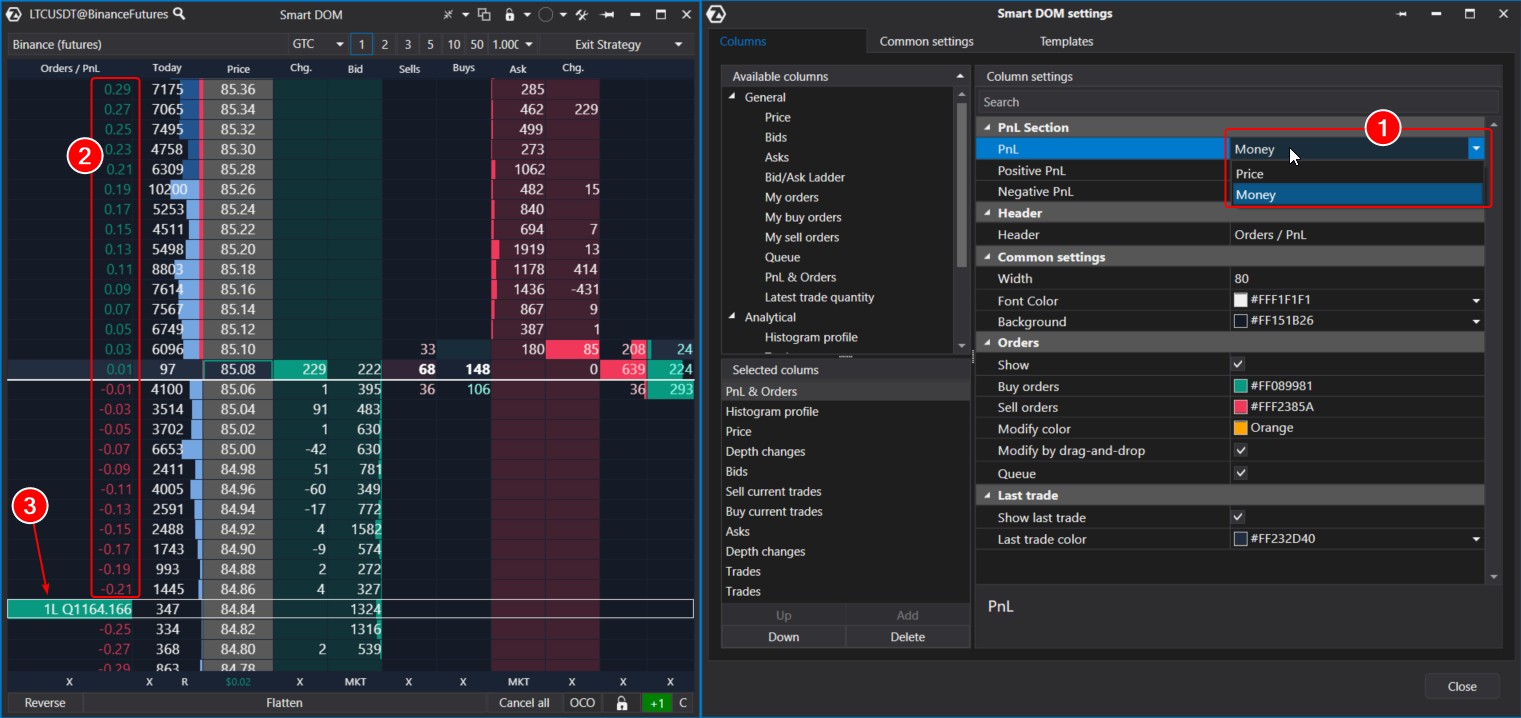
Now, the default PnL value has been changed to Price and Money (1), and a new parameter, Show Last Trade, has been added to the settings, enabling users to view information about the last trade.
The column has become more functional, enhancing workspace efficiency:
- Now, it displays the potential outcome (2) of an open position when closed at different price levels.
- Additionally, there is a marker (3) that displays the volume of an existing limit order and the queue before its execution. Using this marker, you can drag/cancel orders with the mouse.
Profile Clearing Undo
In the footer, there is an X button (1) for undoing profile clearing within Smart DOM. Clicking it enables users to revert the profile (shown as a blue histogram in the screenshot) to its original state and observe how it develops from scratch. This feature can be handy, especially for monitoring price movements after news releases.

Previously, to restore all data, users had to go to settings, specify a period, and thus “restart” the profile, which was a rather tiresome process.
Now, there is an R button below the profile in the footer. It lets users “restore” the original profile without restarting it through the settings window. In other words, it is an undo for clearing. To see how it works, simply click X, and then R.
Visual Enhancements
Smart DOM now includes several subtle enhancements that boost its visual appeal and aid users in quickly navigating through data.
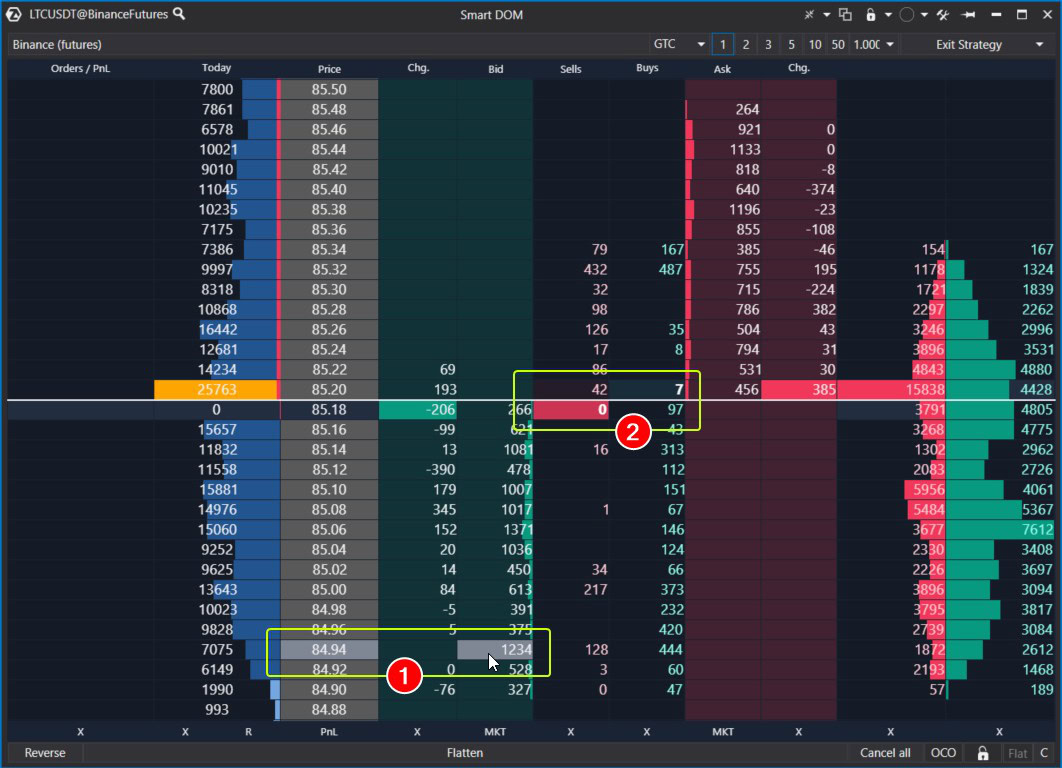
The screenshot highlights the UX enhancements:
- levels now light up when hovered over with the mouse;
- the latest trades are now highlighted with color and displayed in bold font. Users can customize the color in the Sell/Buy current trades column settings using the Last Trade Settings parameter.
Enhanced Centering
Centering is the action (up-down shift) that Smart DOM automatically performs to ensure that current prices are centered on the screen.
Previously, automatic centering occurred every 60 seconds.
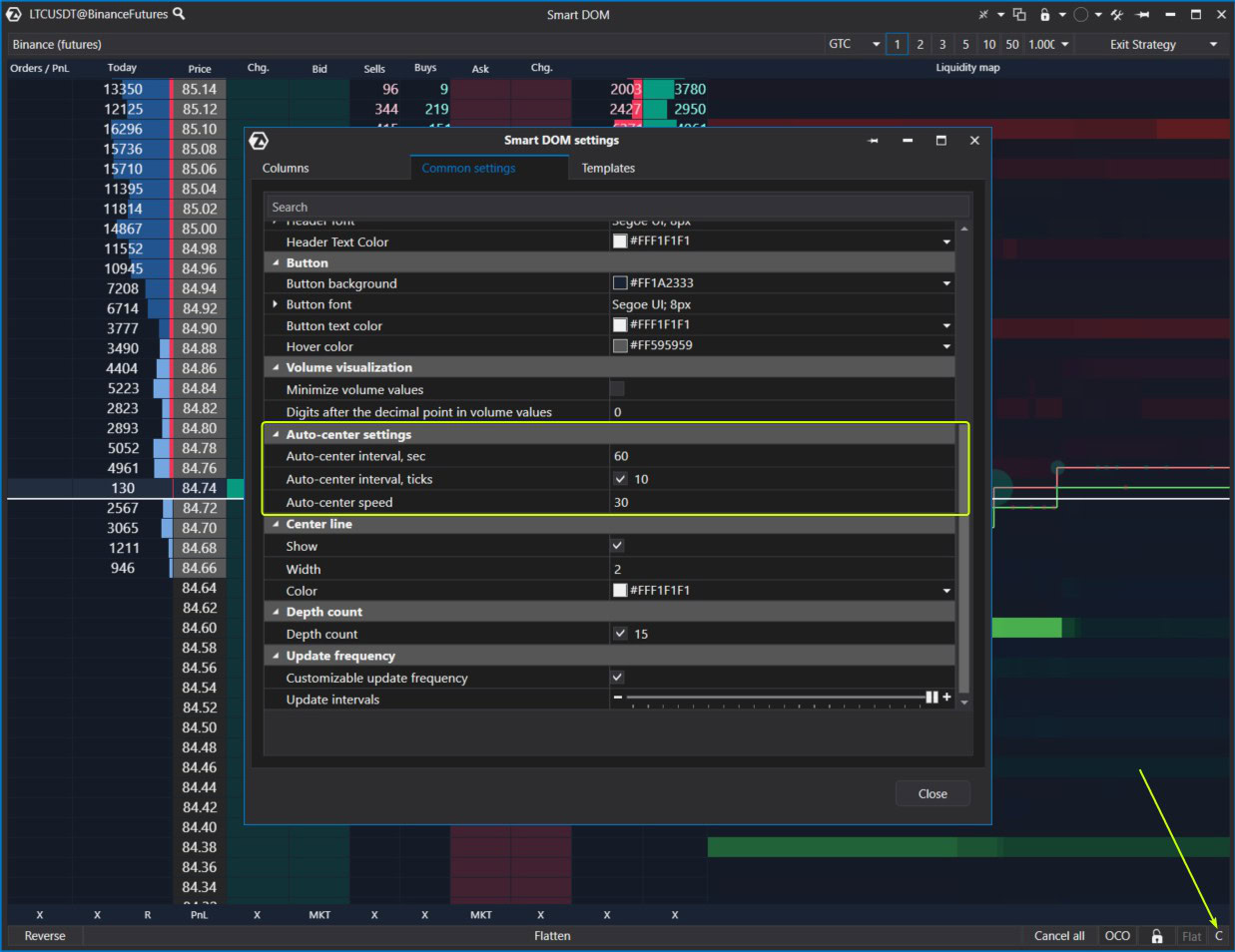
However, now it has a new feature of automatically centering the DOM when the current price deviates from the center by 10 ticks (levels). You can adjust centering parameters on the Common tab in the Smart DOM module settings.
Moreover, you can center the DOM by clicking the C button (shown with the arrow above). Double-clicking this button will center all open Smart DOM modules.
Enhancements to the Depth Changes Column
The algorithm for displaying information in this column has been improved,
taking into account various technical nuances related to value accuracy. Now, the column more accurately reflects significant changes at specific price levels.
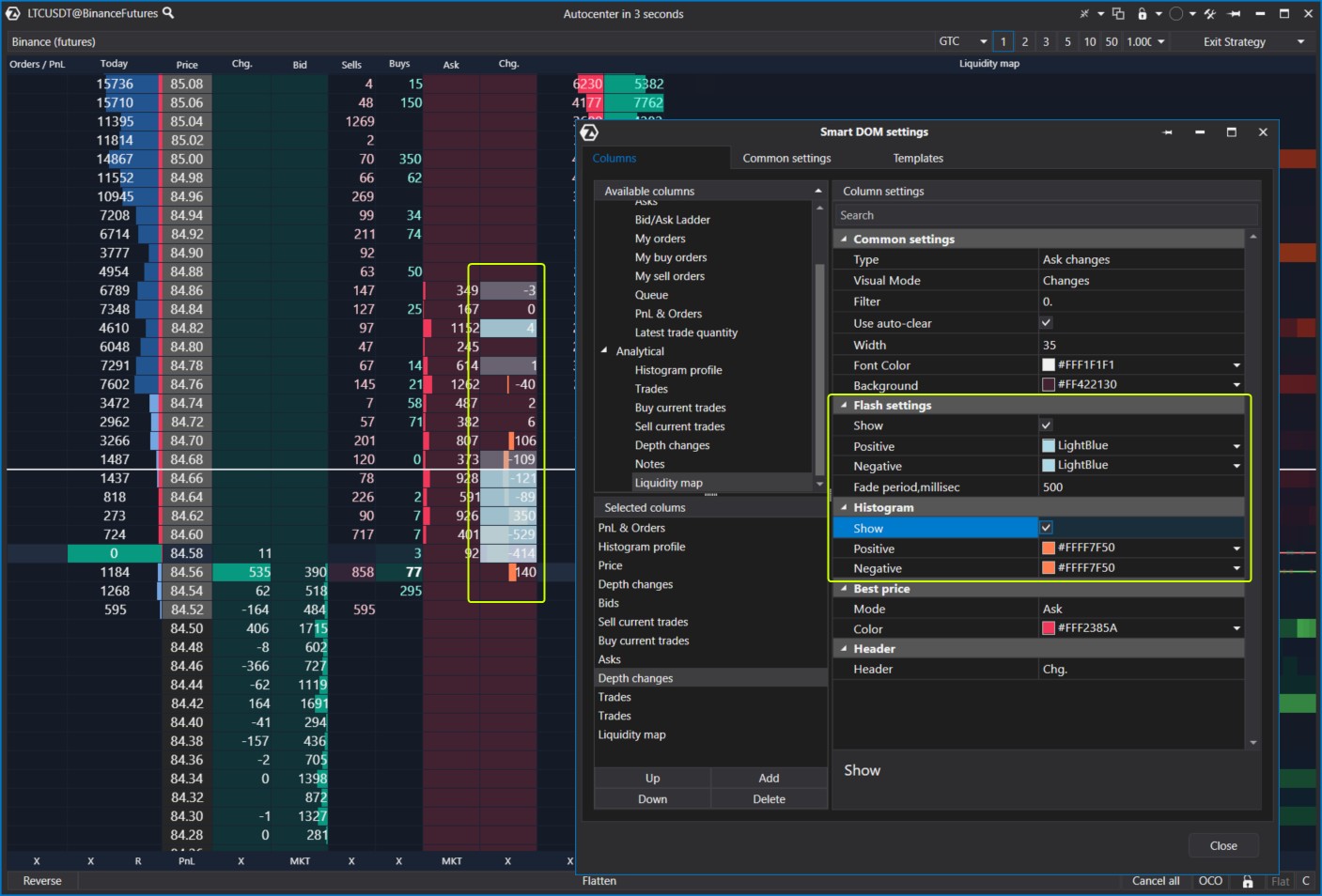
We have also added features for more flexible visual customization. In the column settings, you will now find:
- Flash Settings parameters. These are visual “flashes” that can have different colors for positive and negative changes;
- Histogram parameters. This displays changes in a histogram format for easier comprehension.
Other Enhancements
Show Unavailable Rows parameter has been added to the Bid Ask Ladder column settings. You can use it to enable / disable the display of information for levels that were previously relevant.
Depth Count parameter has been added to the Smart DOM module settings tab. It controls the number of levels in the DOM.
The template library in the settings manager window has been updated. The default template opened for new users has been updated.
How to Use Smart DOM in Trading
Smart DOM is a continuously updated tool designed for implementing various active trading strategies, such as scalping, when traders capitalize on small price movements by executing trades within seconds or minutes.
Practical experience is the best way to assess how beneficial Smart DOM can be for you:
- Download and install the ATAS platform.
- Launch Smart DOM in Market Replay mode (ensure Level II data is chosen the simulator settings).
- Assess your ability to trade profitably, pay close attention to price action around significant volume levels.
The simulator enables you to test your strategy in conditions closely resembling real ones, but without risking your capital.
Try combining Smart DOM with other tools available in the ATAS platform, including:
- Footprint Charts. Cluster charts offer filtering options and delta display, providing hundreds of variations. They help keep track of the overall market picture, while Smart DOM allows you to focus on the details.
- Trading features integrated into Smart DOM, enabling flexible trade volume management and customization of automatic exit strategies.
- Advanced indicators: Big Trades, DOM levels, Market Profiles, Cluster Search, Speed of Tape, and others.
Additionally, you can combine Smart DOM with non-standard timeframes, drawing objects, set up alerts, and test volume behavior patterns in the DOM across various markets: cryptocurrencies, futures, stocks. If you encounter any issues, the responsive ATAS support team is there to assist you.
Conclusions
With each update, Smart DOM becomes even smarter. It is designed to provide maximum convenience and functionality for analyzing liquidity in the order book, assisting professional traders in making informed decisions based on order flow and market dynamics.
Download ATAS. It is free. During the trial period, you will get full access to the platform’s tools to experiment with copying trades, strategy development, and more. Moreover, you can continue using the program for free even after the 14-day trial period is over, whether it is for cryptocurrency trading or volume analysis.
Do not miss the next article on our blog. Subscribe to our YouTube channel, follow us on Facebook, Instagram, Telegram or X, where we publish the latest ATAS news. Share life hacks and seek advice from other traders in the Telegram group @ATAS_Discussions.
Information in this article cannot be perceived as a call for investing or buying/selling of any asset on the exchange. All situations, discussed in the article, are provided with the purpose of getting acquainted with the functionality and advantages of the ATAS platform.